Important: Login Method for the NDL Search and Related Services to Change on June 17, 2026
In order to enhance security, authentication for registered users logging in to the National Diet Library Search, the National Diet Library Digital Collections, and related websites will change to an email-based authentication system on June 17, 2026.
*There are no changes to any functions other than the login method (for example, you can continue to use the National Diet Library Search for bibliographic searches and saving bibliographic records to a file, and access the National Diet Library Digital Collections to search and view content marked “Available without login” without logging in).
Registering and Confirming Your Email Address to Receive Authentication Codes
Under the new authentication method, you will be required to enter a one-time authentication code sent to your registered email address in addition to your User ID and password to log in.
If you have not yet registered an email address, please log in to the National Diet Library Search or a related website and register a valid email address before June 16, 2026 so that you can receive authentication codes.
If you have already registered an email address, please verify that you currently receive email there. If it is no longer valid, please update it accordingly.
For detailed instructions, please refer to How to Register or Change Your Email Address.
Important Notes on Registering or Updating Your Email Address
- Please register an email address that you can access when using NDL websites. If you are unable to receive authentication codes, you will not be able to log in to the National Diet Library Search and related websites from your own devices, either outside or inside the Library.
- If you access the National Diet Library Search or the National Diet Library Digital Collections websites while away from home or the office, we recommend registering an email address that you can access from your smartphone or similar device. This includes when using your own device inside the Library.
- Please ensure that your email settings allow you to receive messages from the ndl.go.jp domain.
Please note that you will not be able to reset your password via the Internet without registering a valid email address.
Login Procedure under the New Authentication Method
- Enter your User ID and password on the login screen, and click the Log In button.

If you check the Keep Me Logged In checkbox and log in successfully, you will not need to log in each time.
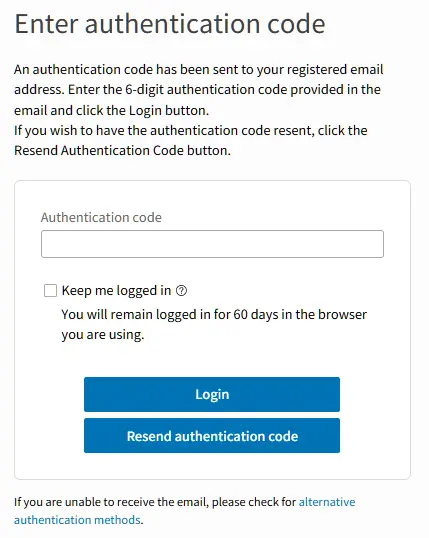
Click the Log In button to display the Enter Authentication Code dialog.
Using the Keep Me Logged In checkbox
If you check the Keep Me Logged In checkbox and log in successfully, you will remain logged in on that device for 60 days. During that period, you will not need to enter your User ID, password, or authentication code to access the website.
Please do not use the Keep Me Logged In checkbox on devices that are shared with others, such as computers at your workplace or school.
- Check the authentication code sent to your registered email address.
An email containing the authentication code will be sent to your registered email address from the ndl.go.jp domain. The six-digit number shown in the red box in the image below is the authentication code. Use your email software or application to read the mail and check the authentication code.
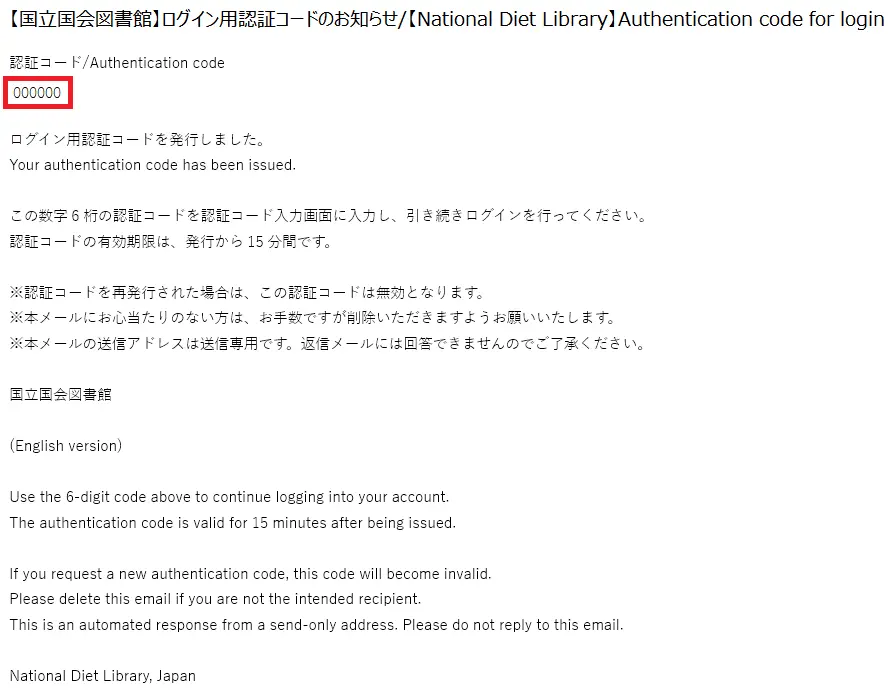
Please be aware that the email sent by the NDL to notify you of your authentication code does not contain any URLs. Please beware of phishing scams sent from scammers.
Please also be sure that appropriate security measures are in place for your email account.
- Enter the authentication code to log in.
Enter the six-digit authentication code shown under Authentication Code in the email you receive in the Enter Authentication Code dialog to complete your login.
Frequently Asked Questions (FAQ)
Answers to frequently asked questions are provided on the following page. Please check this page before making an inquiry.
How to Register or Change Your Email Address (Before the Login Method Change)
- Click the Login icon in the upper right corner of the NDL Search top page.
- Enter your User ID and password in the dialog to log in.
- Click the My Account icon in the upper right corner of the page to display the My Account page. My Account page will display your currently registered email address, if any, in the email address field. To register or change your email address, click the Review or Update User Information button at the bottom of the window.
- Click the Change button to the right of the email address field.
- Enter your new email address in the New Email Address field that appears, and click the Update button at the bottom of the window.
- A confirmation email will be sent to the email address you entered. Please click the URL to confirm email address update in the email within 10 minutes.